In this article I will demonstrate how to implement a plugin to extend the possibilities for showing activities that are related through account hierarchy in a subgrid on a Microsoft Dynamics CRM form.
In my previous article I showed how to create a simple plugin to show all directly related activities in a subgrid, and not just activities related through the Regarding field.
Microsoft Dynamics CRM offers great capabilities for activity entities, both out of the box and custom activities. This post will describe a way to extend those capabilities even more, using a quite simple plugin.
During eXtremeCRM in Warsaw last week, a fellow CRMian and frequent user of FetchXML Builder approached me to ask if I knew a way to create “dynamic” queries with some contextual awareness. He had used unsupported methods to inject FetchXML to subgrids, to be able to show all activities related to current record, not just those where the record is related through the Regarding field. As I will show in this post, this can be accomplished with a simple plugin and a custom view.
Background
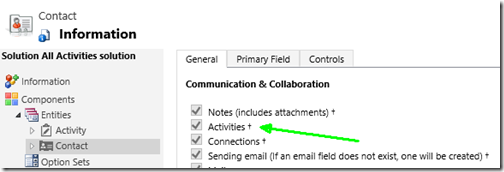
Activities handle e-mail, phonecalls, tasks, meetings, and even faxes and letters. Common custom activities are sms, transactions, and any other date-bound entity that involves participants of some kind. Participants can be contacts, accounts, leads, users, and the activities can be regarding eny entity with the “Activities” option selected. When looking at an associated view of a record to display associated activities, this can display activities where the current record is either recipient, sender, participant or regarding the activity. This is done with specialized views built into CRM, as this gives a useful overview of all activities concerning the party. The problem is when you want to have a similar view embedded on the form in a subgrid. In this case, you can only add activities related to the record through the Regarding lookup on the activities. This will of course only show a fraction of all activities that may be related to the contact, account, or any other entity form the subgrid is placed on.
Solution – the customizations
To solve this, we need to modify the query that is executed by CRM. Instead of filtering activities based on the value in the Regarding field, we want to verify that the current record is any kind of “party” to the activity. First, create a custom view for the activities, with a signature that can be identified by our plugin so that it does not trigger when we don’t want it to. Open the “All Activities” view, and select Save As to create your custom view. Add a filter criteria to only show records where Activity does not contain data. Save the view. The view is now pretty unusable. It will never show any records as activity is required for the activitypointer pseudo entity. Next, add a subgrid to the form where you want to show all activities, and select the new view as the default and only view. The customizations are now in place, and when we view any record with this form, nothing will show in the added subgrid.
Solution – the plugin
To get the query we want to be passed to CRM, we will intercept the RetrieveMultiple message in the execution pipeline before it goes to CRM. By analyzing the request we see that the query is formed like this, after conversion to FetchXML:
A bunch of included attributes have been excluded for readability So, let’s create a plugin that triggers Pre RetrieveMultiple of activitypointer, and investigate if it has our “signature”.
A bit of explanation: Line 3-7: First sanity check of the query to verify that we might find our signature. Line 13-29: Looping through the conditions to find our signature. Line 15-19: Identifies the null-condition that was introduced in the view. Line 20-24: Identifies the relation for the view, used to extract the record id. Line 30-34: Verification of our signature. Line 35: Extract the id of the parent record which is being displayed. Line 39: Remove the null-condition used only to identify our signature. Line 40: Remove the condition that the activities must have current record as Regarding. Line 43: Create link-entity to activityparty, where the current record should be found. Line 44: Add condition that the associated party shall be the current record. As can be seen in the Execute method above, if the query is updated by our code, the updated query will be put back into the plugin execution context, and thus the updated query is what will be executed by CRM. Finally, the plugin shall be registered in CRM.
Result
The subgrid on the form now contains all activities that are related to the current contact, in this case. If you activate Plug-in Trace Log for all executions, you can now see logs with something like this in the message block:
Checking criteria for expected conditions
Disregarding condition for isregularactivity
Found triggering null condition
Found condition for regardingobjectid
Found regarding id: 633929a2-f2e1-e511-8106-000d3a22ebb4
Removing triggering conditions
Adding link-entity and condition for activity party
Resources
The complete source code for this plugin, including a bit more extra debugging information than shown here, can be downloaded here. A CRM solution with the customized activity view, modified contact form, the plugin assembly and a plugin step can be downloaded here as managed version and unmanaged version.
The new feature for segmenting solutions in Microsoft Dynamics CRM is absolutely awesome. It finally allows you to only include the parts you actually want your solution to change.
For us as an ISV this is a huge improvement. We can now deliver solutions that are completely “plug and play” and still leave a minimal footprint on the whole customer system.
RibbonDiffXml segmentation
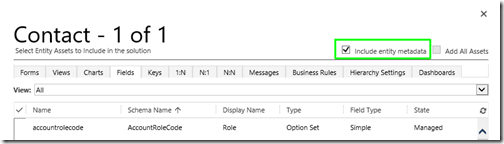
There is however one thing that is still not possible to separate with enough granularity. To include the ribbon definition of an entity, you need to check the Include entity metadata checkbox. Unfortunately this also includes the entity display name, plural name, and all other “entity wide” settings such as Notes, Connections, Mail merge etc. The result of this is that if we include the Contact entity just to be able to add a solution specific button to the command bar, we must also include the entity settings.
Problem
When a customer has developed their own solutions, or got solutions from other third parties, we quite often face the situation where they have changed the name of an entity, e.g. Contact is renamed to Person. Now importing our solution to add this button to the contact command bar, will also change the name of the contact entity back to default, or rather to whatever it is called in our solution.
Solution
This could be solved by allowing a separate option for the RibbonDiff part of the entity definition when selecting components for the solution.
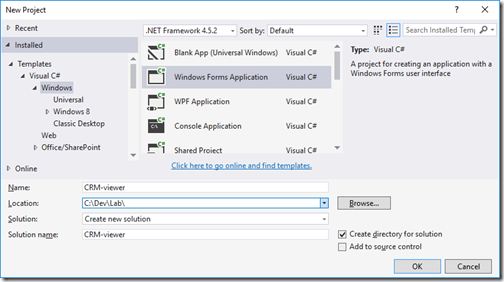
Thanks to open source components for Microsoft Dynamics CRM, you can develop a WinForm application for CRM in 5 minutes.
In this blog article, I will go through a few simple steps to get up to speed developing a client that connects to and shows information from Microsoft Dynamics CRM by using two open source spinoff components: ConnectionManager from XrmToolBox and CRMGridView from FetchXML Builder.These four simple steps are all that is required:
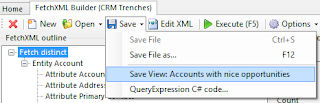
My first article published on MSDynamicsWorld.com gives a detailed instruction on how to use FetchXML Builder to create advanced views in Microsoft Dynamics CRM – so advanced they are not possible to create using the CRM UI.
eXtremeCRM 2015 will be hosted in Madrid, Spain, on April 21-22.
This is the fifth year the conference is held in Europe, of which I have personally taken part in Prague 2011, Rome 2013, Barcelona 2014, and now on the way to Madrid 2015. So by now I have some expectations.
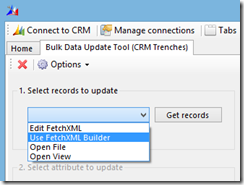
With the next release of FetchXML Builder for XrmToolBox it is possible for other tools to benefit from the UI FetchXML Builder offers to compose queries to be used for any purpose.

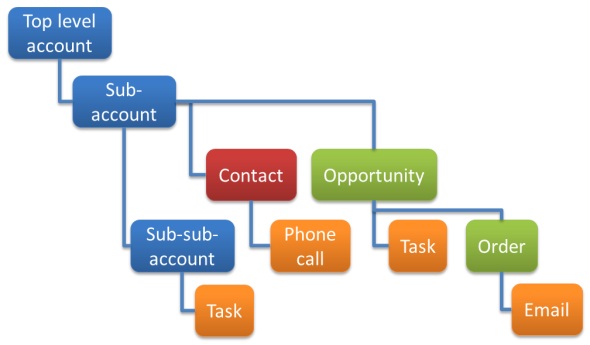
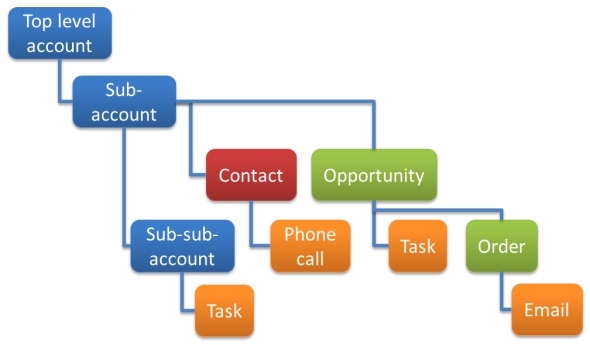 Some of you may recognize this model – it is respectfully borrowed from MVP Jukka Niiranen’s blog post on this problem: CRM 2011 subgrids ain’t what associated views used to be. As this article indicates, this has been a problem ever since we left CRM 4.0 behind. Continue reading “Show hierarchically related activities in subgrid”